Turn a photo into a paint-by-number sheet
Convert a picture into numbered regions sized for a brush, with a colour key you can match to your own paints. Free, printable, and it runs in your browser — the photo never leaves your device.
Drop your photo here
or browse your files
PNG · JPG · WEBP · GIF
What you get
Real output from this tool, not a mock-up
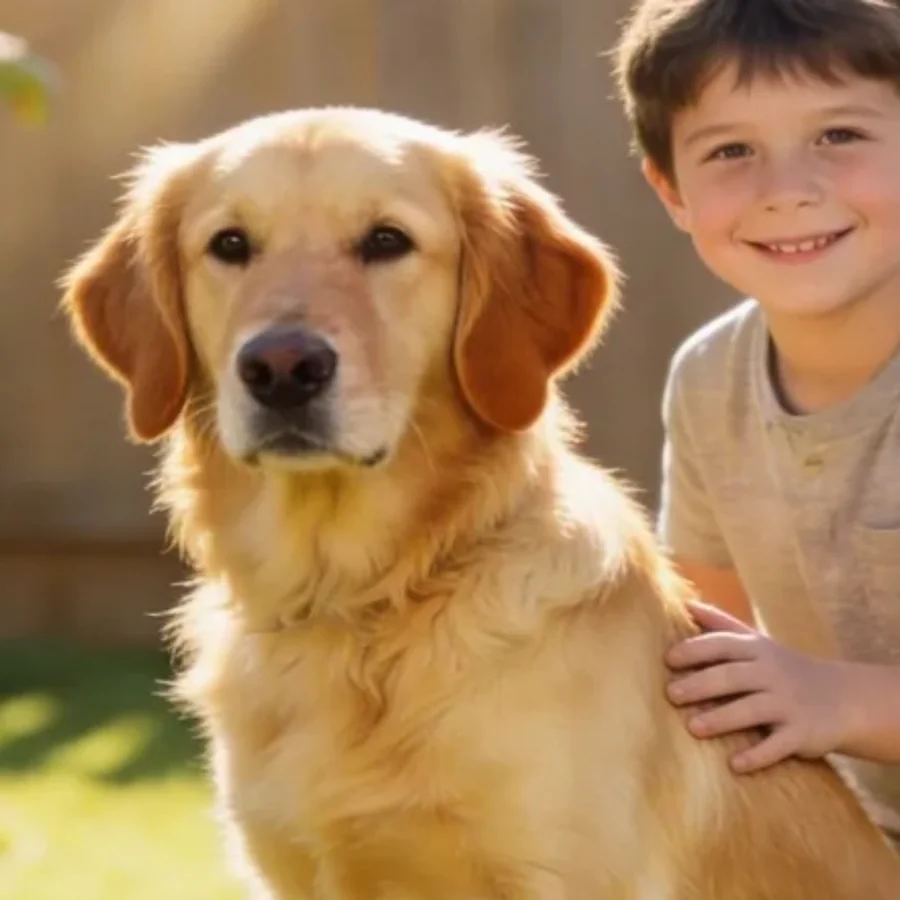
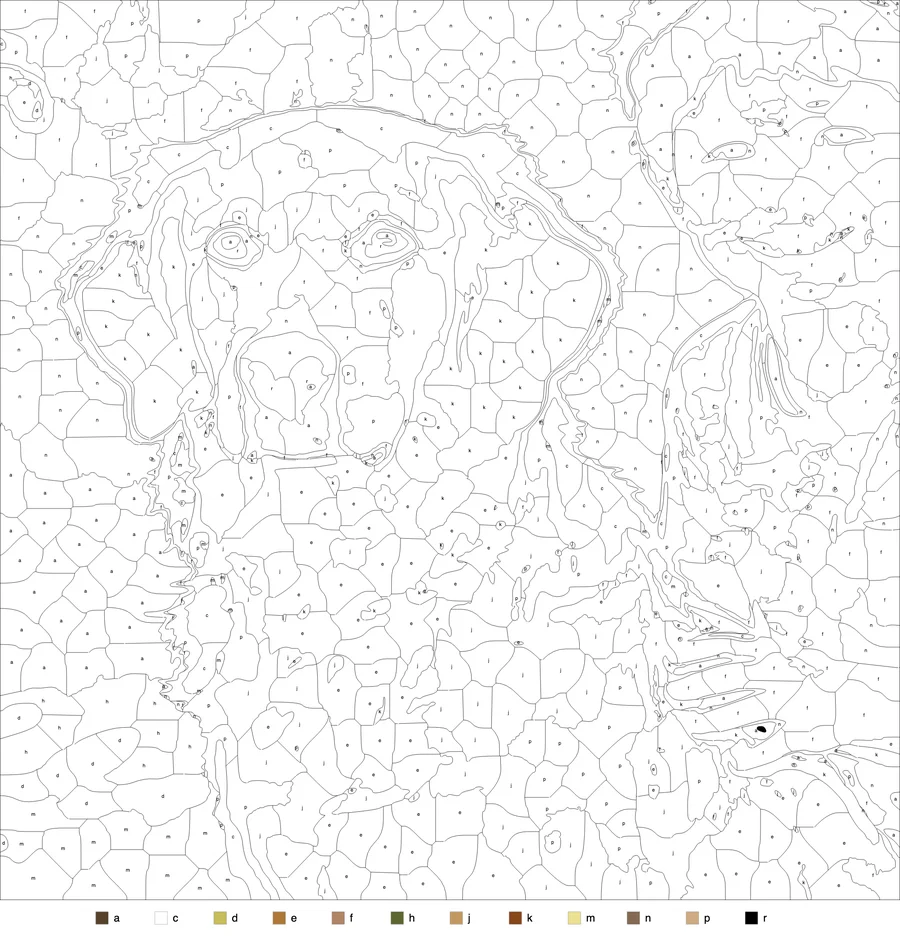
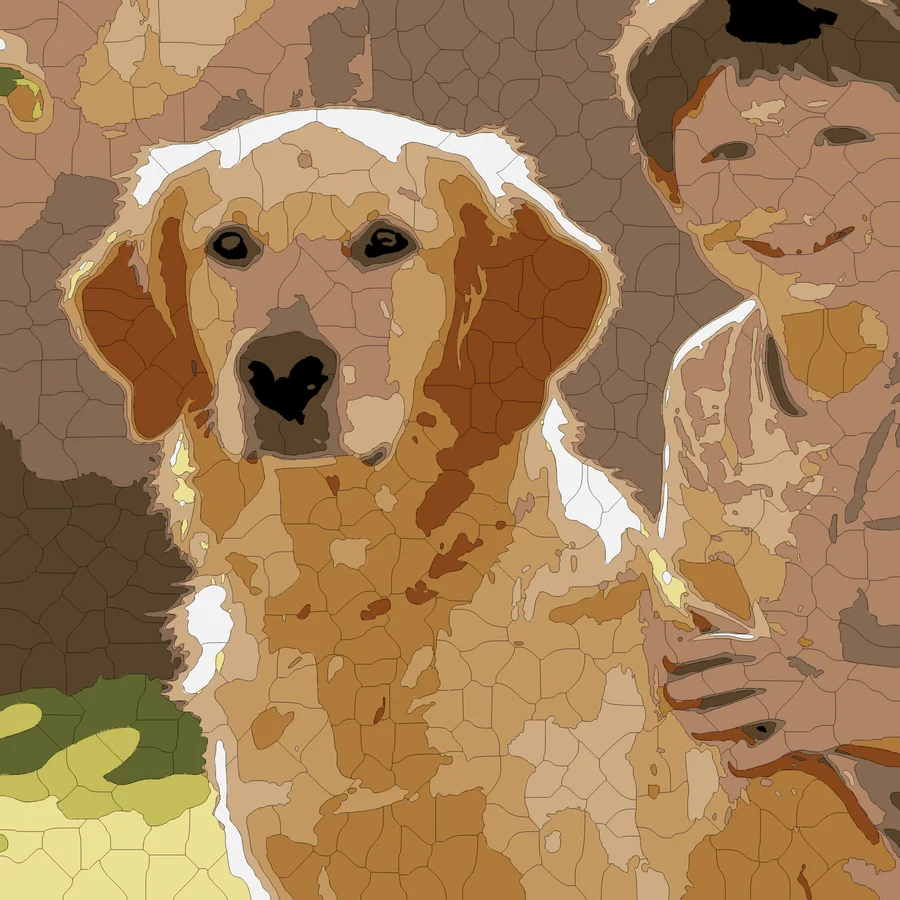
Paint by number is not colour by number
The generator makes both, but they want different settings. A colouring page can have hundreds of small regions because a pencil point goes anywhere. A brush does not: a region narrower than the brush is a smear, and a sheet with two hundred fiddly shapes is a sheet that gets abandoned half done. A paint-by-number needs fewer, larger areas and a palette small enough to actually mix.
Three settings do it. Set Colors to 16–24 rather than the default 24–32. Raise Cell size to 28–40 so large flat areas break into cells the size of a thumbnail rather than a fingernail. Under More settings, push Min region up to 60 or more so anything smaller than a brush tip is absorbed into its neighbour. Press Re-process and look at the Outline view: every region should be one you could fill with two or three strokes.
If you are painting from a numbered key the way kit paintings do, switch Label order to numbers. Letters are the default because they stay single-character past nine colours, but numbers are what most painters expect.
Match the key to the paints you own
Most photo-to-painting tools give you a palette and leave you to find paints that resemble it. This one works the other way round if you want it to. Open the palette editor above the sheet, click a swatch, and type the hex value of a paint you have — craft-acrylic ranges publish these, and a phone colour-picker app on a painted test patch gets close enough. Re-process, and the photo is mapped to exactly those colours: the tool never nudges a colour you set by hand.
Twelve tubes is plenty for most subjects. A portrait wants two or three skin tones, a dark and a light for the hair, and a couple of background colours; the rest of a big set goes unused. Delete the swatches you cannot mix, keep the ones you can, and the generator does the compromising for you rather than leaving you to do it at the easel.
Printing a sheet you are going to paint
Download the SVG, not the PNG. Paint-by-number sheets get printed large — A3 is comfortable, A4 is the minimum — and a vector file keeps the region borders as thin, crisp lines at any size instead of the soft grey they become when a raster image is scaled up. Open it in a browser or PDF viewer and print with “fit to page”.
The paper matters more than the printer. Copier paper buckles under acrylic and dissolves under watercolour. Use 200 gsm card or canvas-textured inkjet paper at home, or send the SVG to a copy shop and have it printed on canvas board — that is how the kits are made, and it costs a few pounds. The printing guide covers sizing and settings, and choosing paints covers what each medium does to the printed lines.
Pictures that paint well
A good paint-by-number source has broad areas of colour separated by real edges: a portrait in soft window light, a short-coated dog, a boat on flat water, a single flower filling the frame. Foliage, long grass and long fur have no flat areas to find, and turn into confetti no matter what the sliders say. Crop tight before you upload — the subject should fill the frame — and expect to make two or three versions before you print. There is a subject-by-subject guide in which photos work.
Quick answers
Can I print the sheet on canvas?
Yes. Download the SVG and take it to a copy shop that prints on canvas or heavy art paper — it is a vector file, so it stays sharp at any size. At home, canvas-textured inkjet paper or 200 gsm card works well under acrylic.
How many colours does a paint-by-number need?
Fewer than a colouring page. Sixteen to twenty-four colours gives a painting with real shading that is still mixable from a small set of acrylics. Above thirty you are matching paint for hours before you start.
Can it use the paints I already own?
Yes. In the palette editor, set each colour to the hex value of a paint in your set and re-process. The tool maps the photo to exactly those colours, so the key is your paint tubes rather than an approximation of them.
The same tool also makes colour-by-number worksheets for pencils and crayons — the difference is only in the settings.