Turning a photo into a color-by-number page takes about a minute once you know which two settings matter. This guide walks through the whole thing with the generator's own screens and output, using one photo — a golden retriever — all the way from upload to a printed sheet.
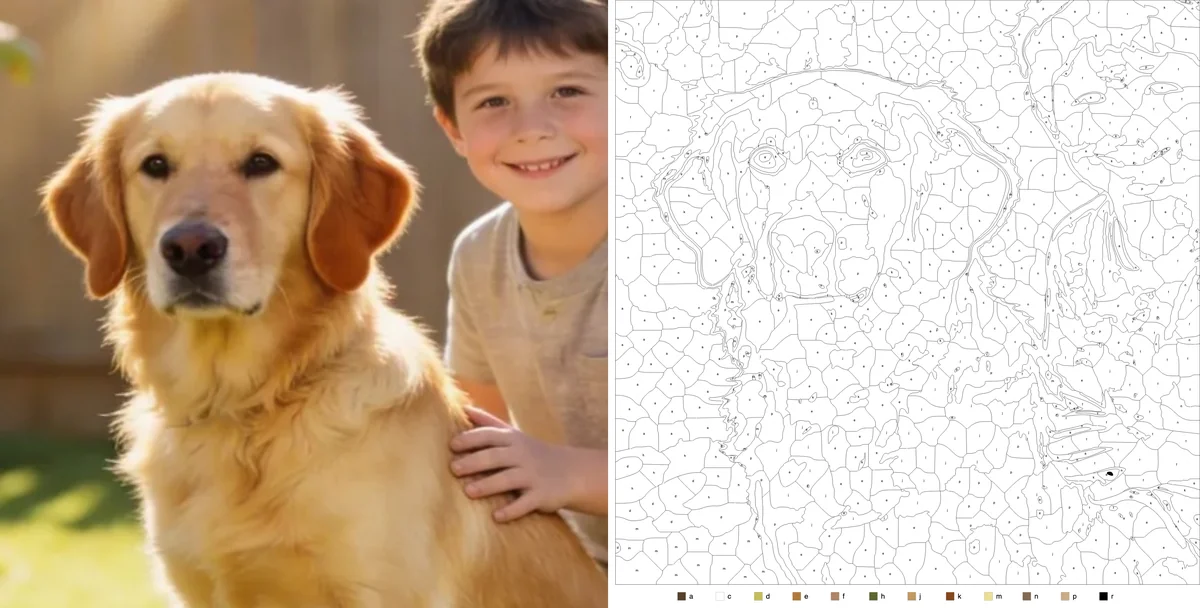
That is the photo on the left and the sheet on the right. Nothing in this article is mocked up: every image is what the tool produced from that file.
1. Pick a photo that will convert
Most disappointing pages are decided before the upload. The generator has to find edges between areas of colour, and a photo either has them or it does not.
Good candidates: one clear subject, even light, a background that differs from the subject in colour. A pet against a wall, a face by a window, a single flower, a building against sky.
Poor candidates: crowds, foliage, long grass, long fur, backlit silhouettes, screenshots of already-compressed images, anything under about 800 pixels on its long side.
There is a longer, subject-by-subject version of this in which photos make the best pages. The short test: squint at the photo until it blurs. If you can still make out the shapes, it will convert.
2. Crop before you upload
This is the step people skip, and it makes more difference than any slider.
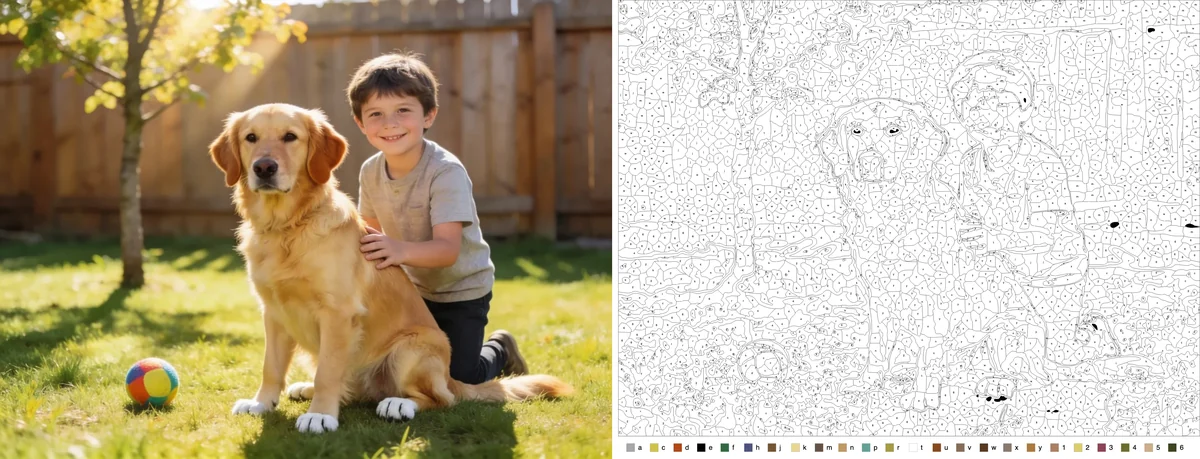
The same dog photographed full-length in a garden. At default settings the sheet is a wall of tiny regions, because most of the frame is grass and fence texture — exactly the kind of detail the tool cannot turn into paintable areas. The dog is in there, but it is competing with the lawn.
Cropping to the dog's head (the first image in this article) fixes it, because now the face has enough pixels to resolve the eyes and muzzle, and the texture is mostly gone. Do this in your phone's photo editor before you upload. Tight is better than wide.
3. Upload
Drop the file on the upload area or click it to browse. PNG, JPG, WebP and GIF all work; for an animated GIF the first frame is used.

Processing runs in your browser, so nothing is sent anywhere and there is no queue — a typical phone photo takes a few seconds. If you see an amber warning that the image is low resolution, it will still process, but expect blocky regions; a bigger source file is the only real fix.
4. Read the four views
The result comes back as four panels.
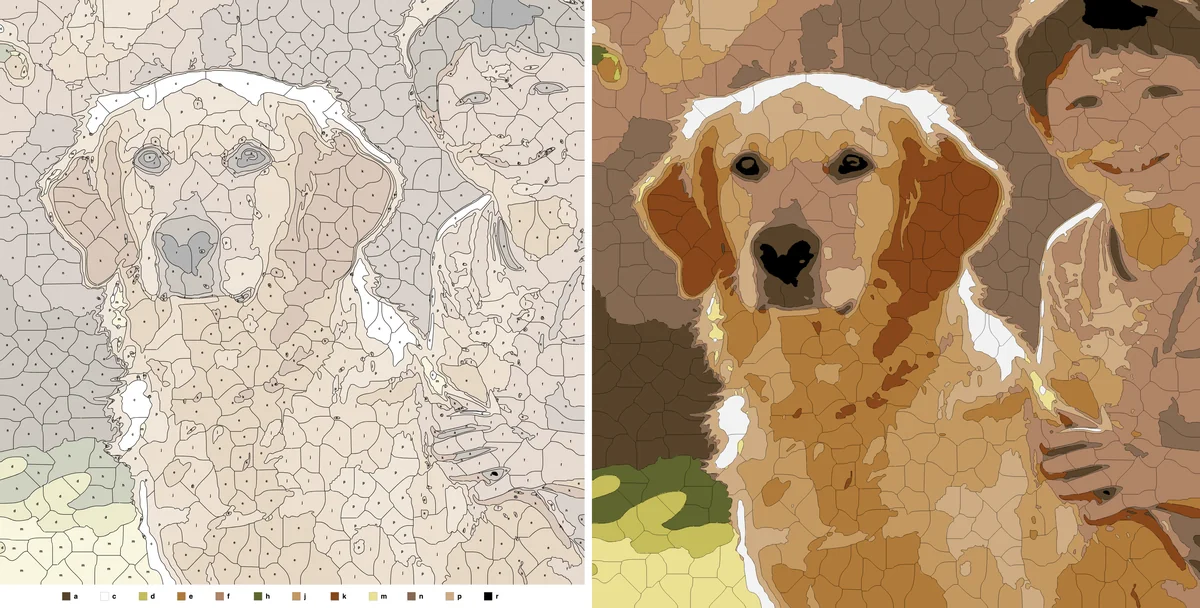
- Original — your photo, for reference. Hovering a colour in the palette strip dims everything else so you can see which parts of the photo that colour covers.
- Colored — the photo reduced to the palette, no lines or numbers. This is the target: what the finished painting looks like.
- Color by Number — the regions lightly tinted with their colour, labels on top. Keep this on screen while you paint.
- Outline — the white sheet with borders, labels, and the colour key. This is the one you print.
If the Colored view already looks wrong — the wrong skin tone, a sky that has gone grey — the sheet will be wrong too, and the fix is in the palette (step 6), not in the line settings.
5. Decide who is painting it
Open Settings. Two controls do most of the work, and the right values depend entirely on who the page is for.
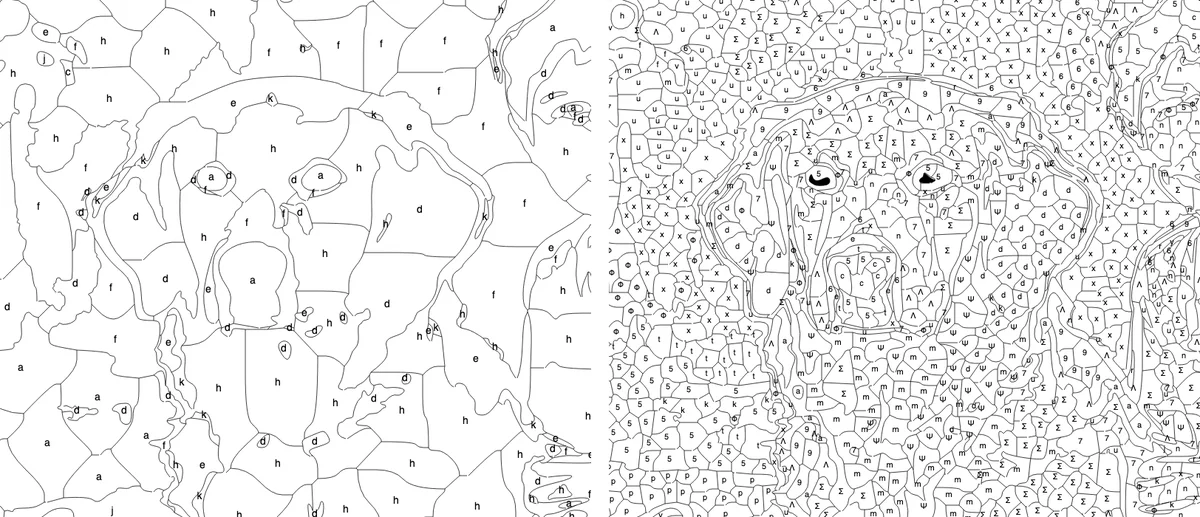
Colors is the palette size. Fewer colours means bolder, simpler shapes; more colours preserves shading. Eight is a child's page; twenty-four is the default and suits most adults; thirty-two keeps skin tones smooth in a portrait.
Cell size breaks large flat areas into pieces. A wide sky at cell size 0 is one enormous region; at 40 it becomes a mosaic of big cells; at 12 a fine one. Larger cells are easier to paint and easier to label legibly.
The left image above is 8 colours with cell size 40 — a six-year-old could finish it. The right is 32 colours with cell size 12, which will keep an adult busy for an evening. Same photo. There is a fuller set of starting points in making pages for every age, and an explanation of every remaining slider in every setting explained.
Change one thing, press Re-process, compare. Changing three sliders at once tells you nothing about which one helped.
6. Fix the palette if a colour is wrong
Above the four panels is the palette: one chip per colour. If the generator chose a muddy green for the grass or missed the red of a jumper, click the chip, type a hex value or pick the colour straight from the original photo, and press Re-process. The tool maps every pixel to your edited palette exactly — it will not drift your choice toward something else.
Removing a chip merges that colour into its nearest neighbours, which is a quick way to simplify a page without lowering the colour count blindly.
7. Download and print
Two buttons: PNG and SVG.
Download the SVG if you are printing. It is a vector file — the borders stay crisp at any size, and thin region lines are exactly the detail that turns grey and fuzzy when a raster image is scaled. Open it in any browser or PDF viewer, print with "fit to page", and check the smallest labels are readable before you make a class set.
The PNG is for screens and for sharing. It is exported at 4× the preview resolution by default (adjustable under More settings), which is plenty for a home printer if you would rather not deal with a vector file.
Paper matters more than most people expect: standard copier paper is fine for pencils, and buckles under paint. Printing at home covers paper weight, sizing and printer settings; choosing paints and pencils covers what each medium does to the printed lines.
8. Make it twice
The generator is fast enough that the best workflow is to make two or three versions of the same photo — a simple one and a detailed one — and print whichever suits the person in front of you. A family can paint the same picture at different levels; a teacher can hand out two difficulties without anyone noticing they are different.
Press Start over to clear everything, or just change the settings and Re-process. Your photo stays on your device throughout, so there is nothing to delete afterwards.